This is the Solution, Bizmatic Add-ons
For

Simplify your WhatsApp Messaging with Google Sheet bulk messaging, smart replies, and automation tools to reach your audience faster and grow your business effortlessly!

Open in Google Sheets

No Payment required. Free With Bizmatic
Whatever you need to WhatsApp your Customers
Directly from Google Sheet with
Bizmatic Add-ons

WhatsApp your customers directly from Google Sheets with this Bizmatic app + Google Sheet + Bizmatic add-on!

1. Bizmatic app

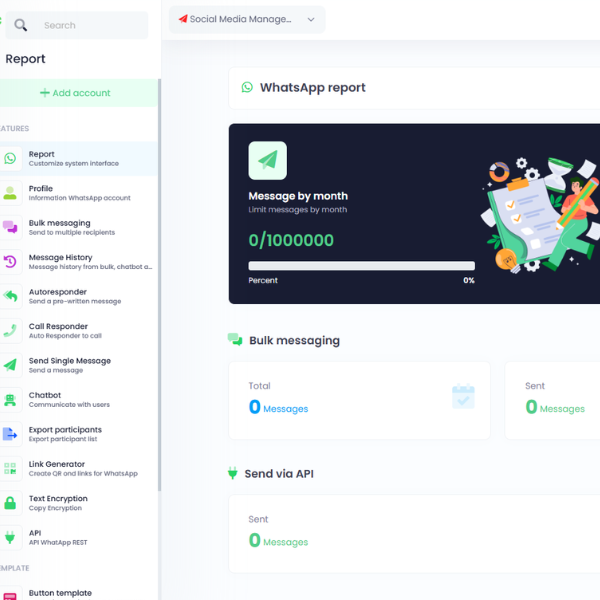
🟢 You must log in to your account in the Bizmatic app.
🟢 Whatsapp profiles must be logged in Bizmatic app.

2. Google Sheet

🟢 The response sheet for form filling should be kept ready.
🟢 Or you can input customer data directly into Google Sheets.

3. Bizmatic Add-ons

🟢 You must pre-install Bizmatic Add-ons from the Marketplace.
🟢 And setup of Bizmatic Add-ons must be complete.

What to do in the Bizmatic app? How to setup?
Need to set up once!

"All the setup required by Bizmatic App to send automatic WhatsApp messages through Google sheet is discussed below step by step."

  • login, (Bizmatic App requires you to have an account).
  • Add Whatsapp profiles- (Go to Dashboard> WhatsApp>
    Add Account> Scan barcode).
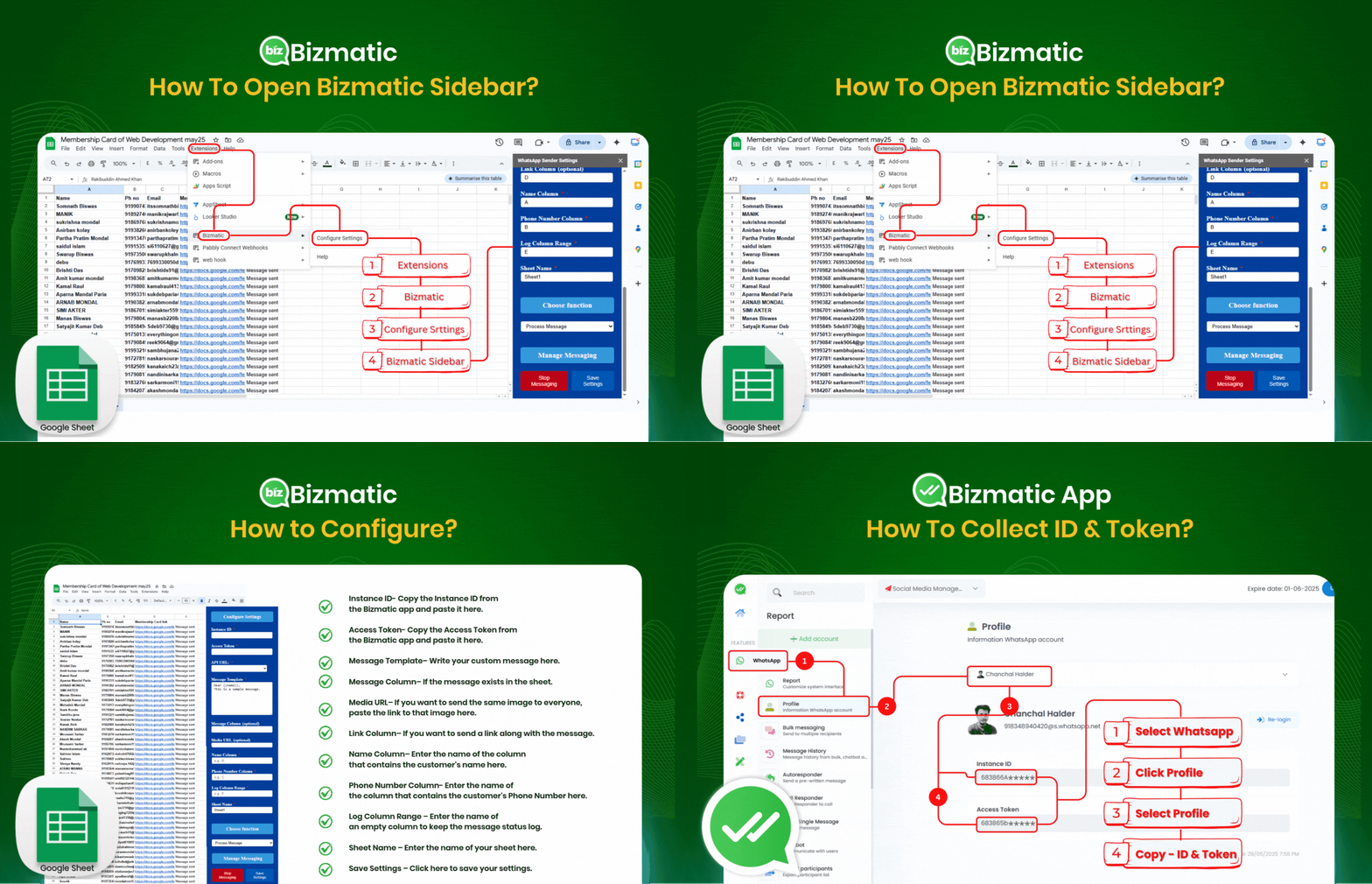
  • Collect ID & Token- (Go to Dashboard> WhatsApp> Profile>
    Select WhatsApp Account> Copy Instance ID & Access Token).

What to do in the Google Sheet? How to setup Bizmatic Add-ons?
Need to set up once!

"Once you enter customer data in a Google Farm sheet or normal sheet, the set-up WhatsApp message will be sent automatically!"

  • install Add-ons-
    (Go to Google sheet> Extensions> Add-ons> Get Add-ons>
    Search Apps-"Bizmatic"> Install Bizmatic>
    Select Account> Give Permission Allow) .
  • Open Bizmatic Sidebar- (Go to Google sheet> Extensions>
    Seclect Bizmatic> Configure Settings)
  • SetUp Bizmatic Sidebar- (Input all necessary data to Custom message>
    Save Settings)
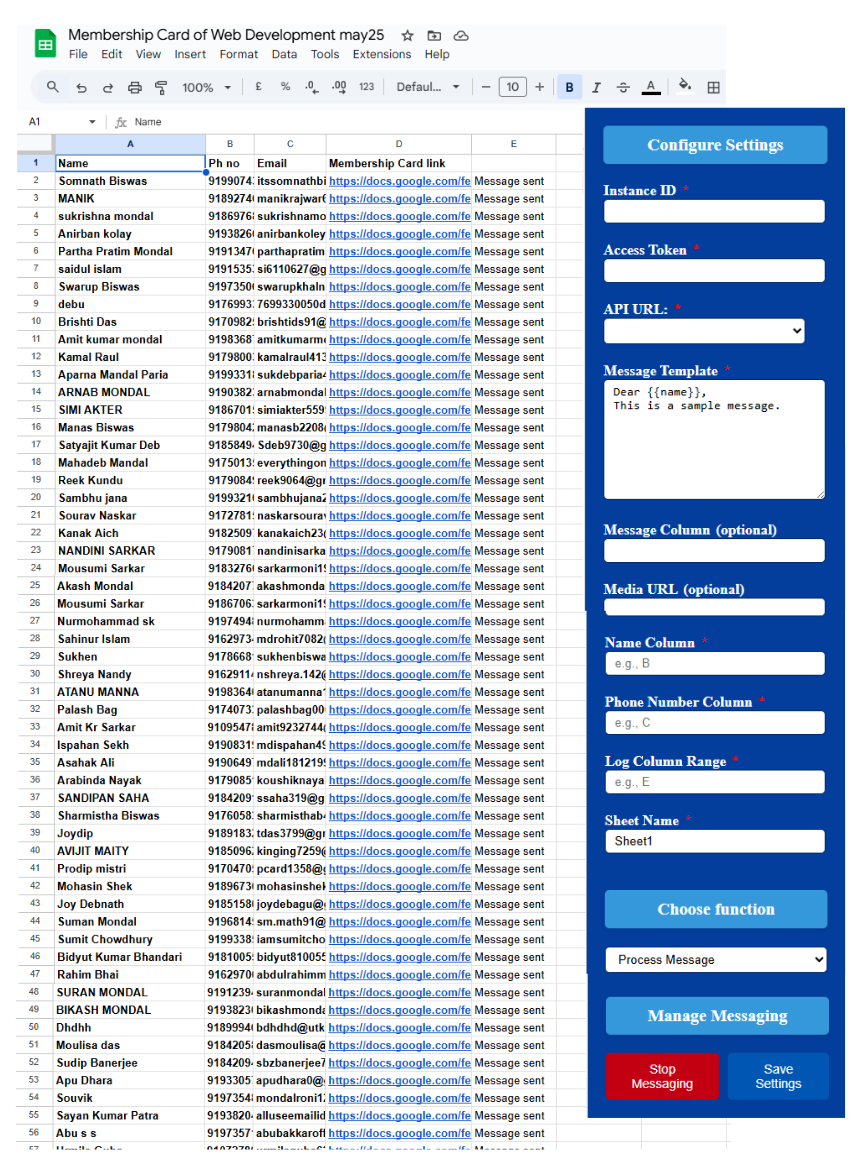
Bizmatic Add-ons Sidebar

What to do in Bizmatic Sidebar? How to Configure?
Need to set up once!

"If configured correctly, the Google sheet will connect to the Bizmatic app, and messages can be sent based on the data in the sheet."

  • Instance ID- Copy the Instance ID from
    the Bizmatic app and paste it here.
  • Access Token- Copy the Access Token from
    the Bizmatic app and paste it here.
  • Message Template– Write your custom message here.
  • Message Column– If the message exists in the sheet.
  • Media URL– If you want to send the same image to everyone,
    paste the link to that image here.
  • Link Column– If you want to send a link along with the message
  • Name Column– Enter the name of the column
    that contains the customer's name here.
  • Phone Number Column- Enter the name of
    the column that contains the customer's Phone Number here.
  • Log Column Range – Enter the name of
    an empty column to keep the message status log.
  • Sheet Name – Enter the name of your sheet here.
  • Save Settings – Click here to save your settings.

Amazing Features

"Bizmatic Add-ons" WhatsApp Messaging made simple and effective!

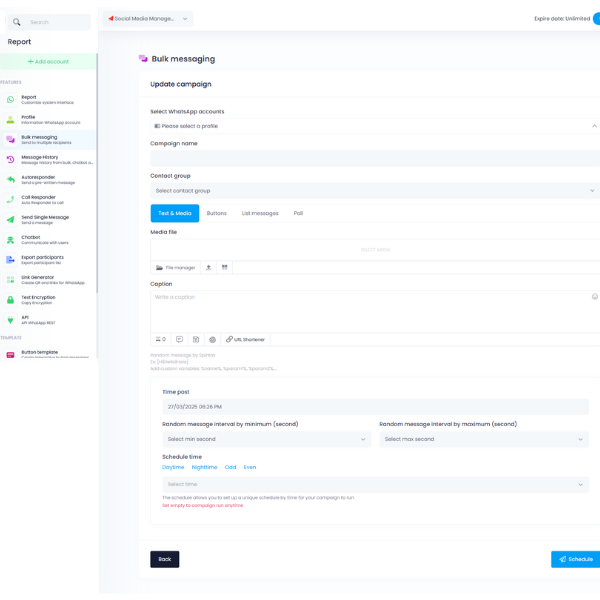
Bulk Messaging

Send WhatsApp messages to multiple leads at once — fast and efficient.

Auto Messaging

Automatically send messages the moment a new lead is added to Google Sheets.

Easy Interface with Sidebar

User-friendly sidebar interface for quick access and control inside Google Sheets.

Custom Message Input

Write and personalize messages for each lead directly from the sheet.

Message with Image and Links

Easily include images, clickable links, or both in your WhatsApp messages.

One-Time Setup

Just set it up once — the system handles the rest automatically.

Know About Our Bizmatic Pro App

Automate messages, follow-ups, and sales with Bizmatic — the only WhatsApp marketing platform designed to grow your business 24/7

Try For Free

No credit card required. Free 3-days trial

Have a question?

Need help with WhatsApp marketing? We’ve got you covered!

Contact Us

LTR RTL